Our digital business cards work using NFC technology, which allows you to exchange your contact details in a simple gesture. However, we understand that some of your contacts may prefer to use a QR code to access your information. Here's how to scan your digital business card using a QR code on various Android devices:
How to scan a QR code according to your smartphone brand?
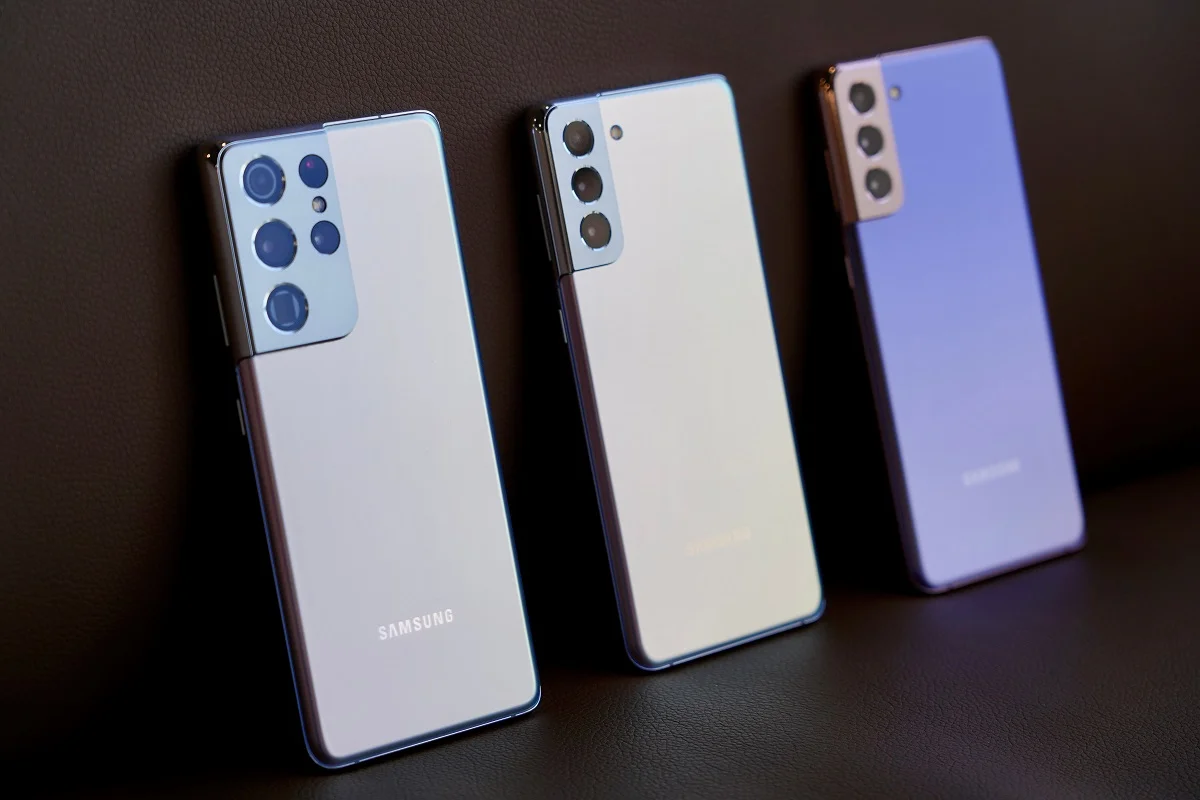
Scan a Qr Code with a Samsung
1. With the camera
Open the Camera App: Unlock your Samsung phone and go to the “Camera” app.
Target the QR Code: Point your Samsung phone camera at the QR code you want to scan. Make sure the QR code is visible in the frame of your phone's camera.
Wait for detection: Your Samsung phone should automatically detect the QR code when you target it with the camera. It can show information or actions related to the content of the QR code.
Track Actions: If the QR code contains a link, text, or other interactive information, your Samsung phone will show this data or suggest actions to take. For example, if the QR code contains a link to a website, it may ask you if you want to open that link in a browser.
The function of scanning QR codes using the Camera app is generally available on most Samsung phones, including the Galaxy S, Galaxy Note, and Galaxy A series models. However, availability may vary depending on the specific model and operating system version installed on the phone.
2. With a third party application
If you have a Samsung device that is not compatible with the camera scan function, download the app Bixby Vision. It will allow you to read QR codes. When you open your camera, the Bixby feature pops up directly to read your QR code.
Compatibility : from Galaxy S8 and 8+
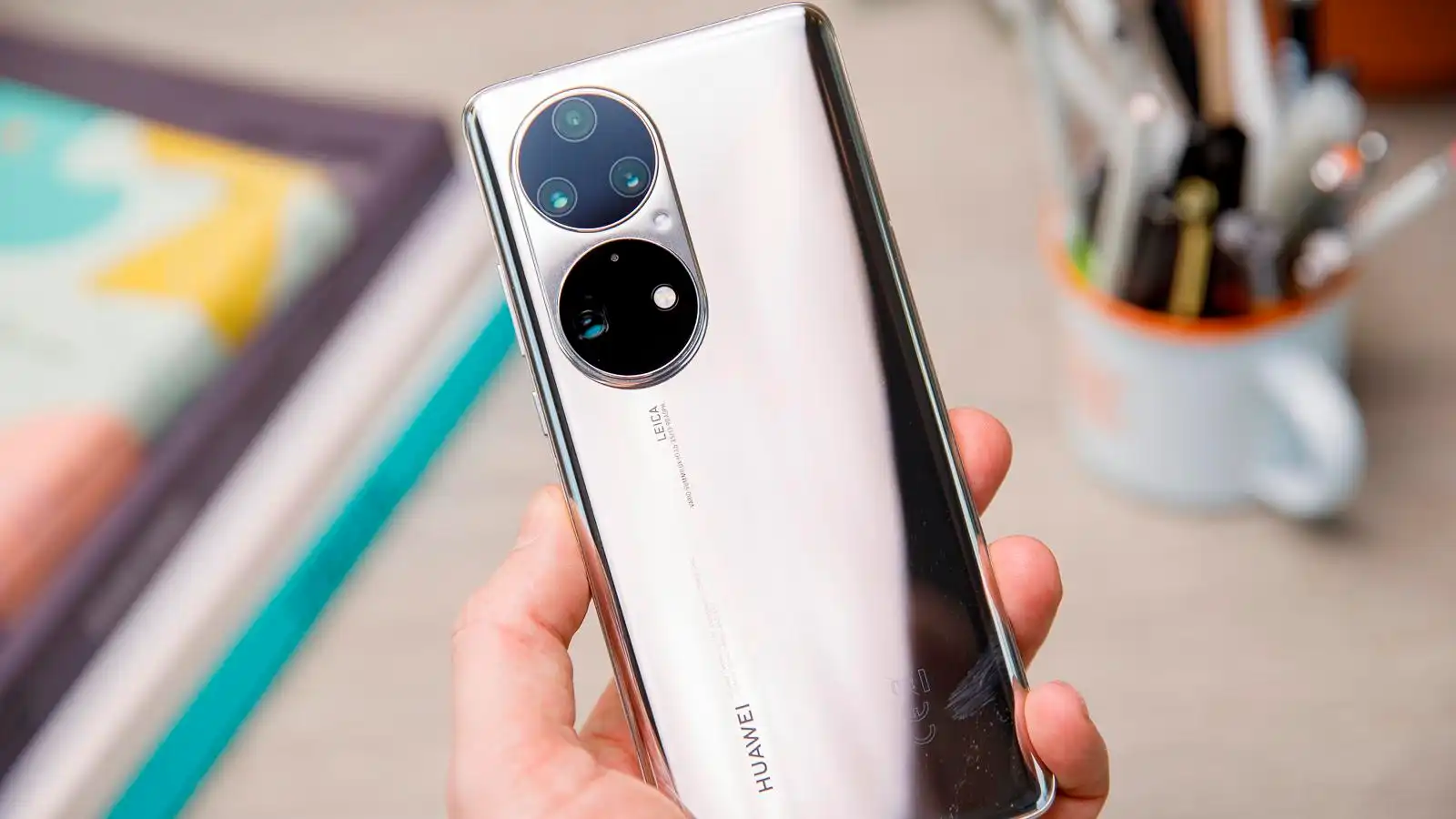
Scan a Qr Code with a Xiaomi or Huawei
For Xiaomi:
Open the “Camera” app on your Xiaomi phone.
Tap the camera settings icon (usually represented by a cog wheel or three vertical dots) to access camera options.
Look for an option called “Scan a QR code” or “Scan” in the camera settings menu. It can be found in the advanced settings section.
Activate this option if it is not already enabled.
Point your phone's camera at the QR code you want to scan. Make sure the QR code is properly framed in the camera viewfinder.
Your phone should automatically detect the QR code and display information or action related to the code, such as opening a web link.
For Huawei:
Open the “Camera” app on your Huawei phone.
Tap the three vertical dots (menu) or the settings icon in the camera app to access camera options.
Look for an option called “Scan a QR code” or “Scan” in the camera settings menu.
Activate this option if it is not already enabled.
Point your phone's camera at the QR code you want to scan. Make sure the QR code is properly framed in the camera viewfinder.
Your Huawei phone should automatically detect the QR code and show the information or action related to the code.
Compatibility: models dating from after 2019
Scan a Qr Code with an Asus
For Asus phones, all you have to do is open the application”Camera” and scan the QR code in question.
Open the “Camera” app on your Asus phone.
Point your phone's camera at the QR code you want to scan. Make sure the QR code is properly framed in the camera viewfinder.
Wait for your Asus phone to automatically detect the QR code. Depending on the content of the QR code, you may see a small notification or a link on the screen.
Scan a Qr Code with an Oppo, Realme, LG or One Plus
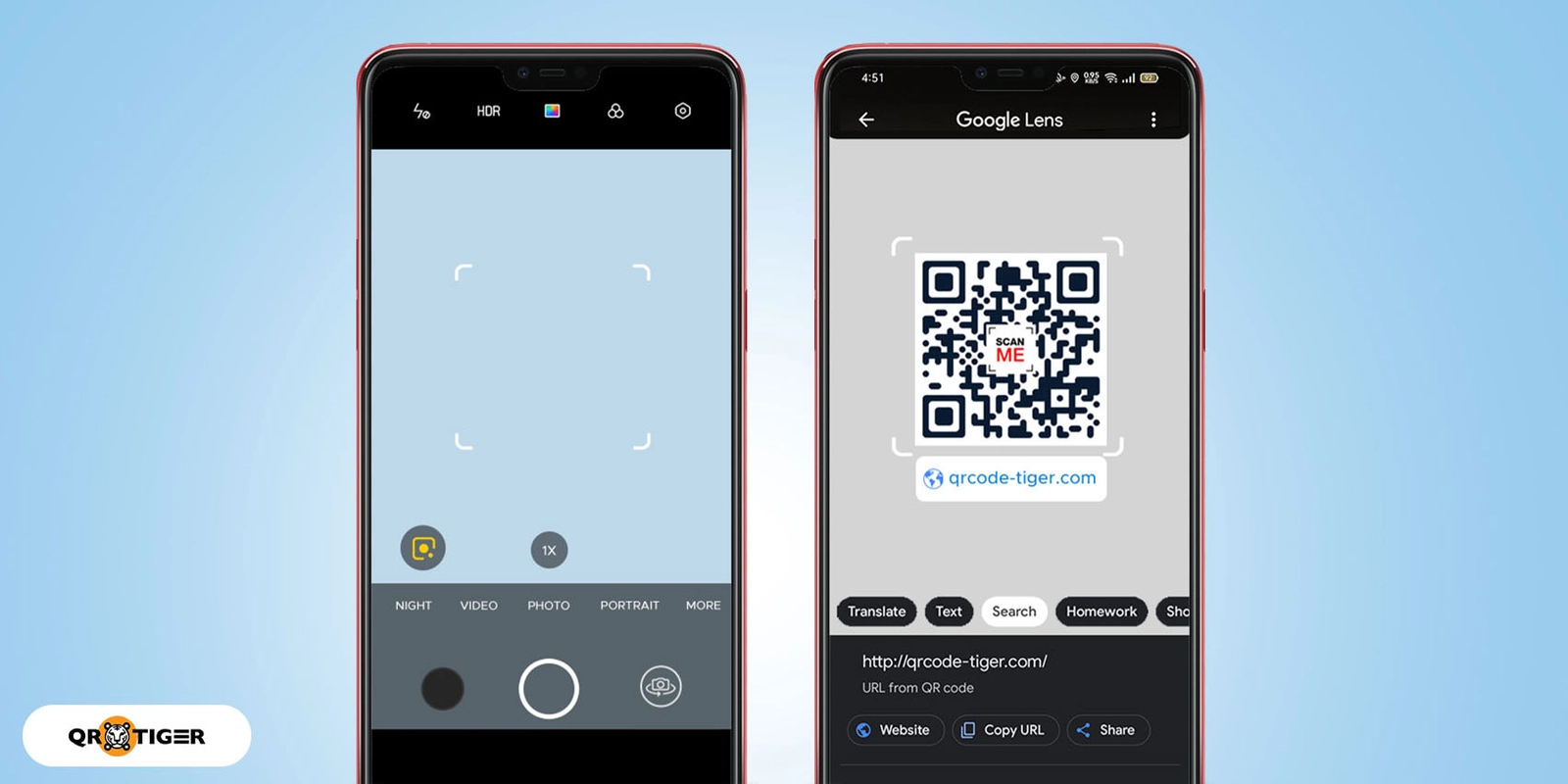
Most Oppo, Realme, LG, and OnePlus phones use Google Lens to scan QR codes. Google Lens is an application developed by Google that uses your phone's camera to detect and interpret information in images, including QR codes.
When you use the camera app on these phones and point the camera at a QR code, the app can automatically recognize the QR code and show information or actions related to the content of the code. This may include opening a web link, displaying text, or providing additional information about the content of the QR code.
Third-party applications to read QR Codes on Android
Google Lens
You can use Google Lens to scan a QR code, start by opening the Google Lens application on your Android smartphone. Once the app is launched, point your camera at the QR code you want to scan. Google Lens will automatically detect the code and show information or actions related to the code. This may include opening a link, displaying text, or providing additional information about the content of the QR code.
Other applications
There are various applications for reading QR codes. The most reliable and best rated on the market remain all the same Google Lens, QR Code Reader and QR & Barcode scanner, all available on Google Play.
The end of QR codes?
As technology evolves, QR codes, while practical, may seem a bit old-fashioned. Today, more and more professionals are adopting the NFC (Near Field Communication) as a modern alternative for exchanging information quickly and without contact.
With NFC, all you have to do is bring your business card close to a compatible smartphone, and your contact details are instantly transferred. It is an ecological, practical and highly customizable solution that adapts to the needs of professionals who want to stay at the forefront of technology.