Marketing and sales

À lire aussi
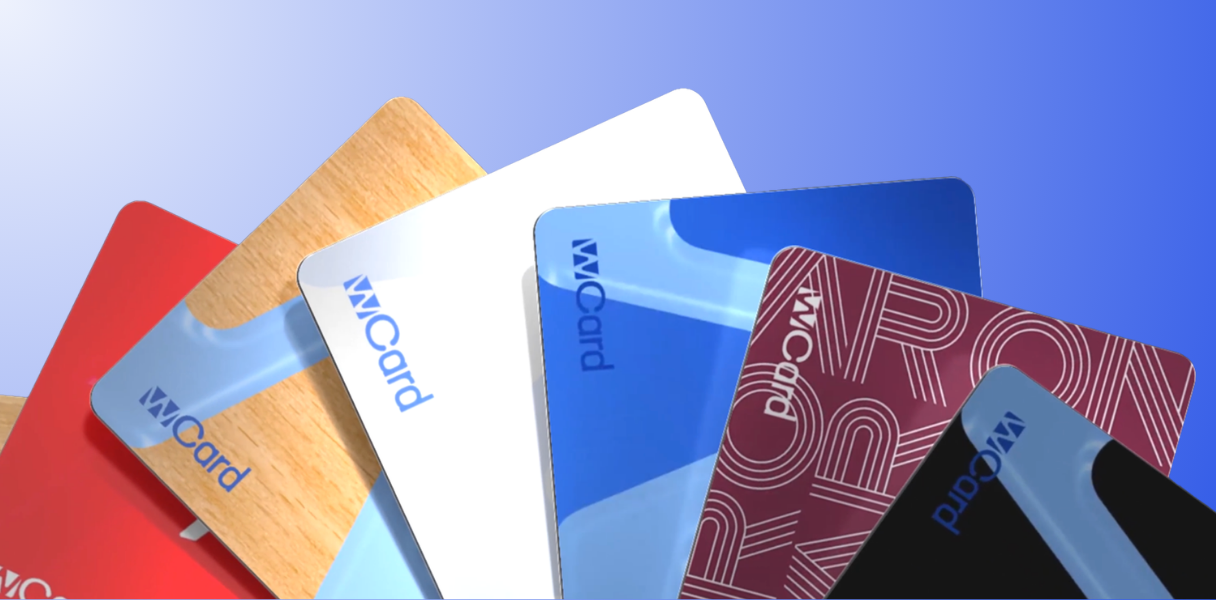
The printing price is just the tip of the iceberg: 7 hidden costs that drive up the real bill for your business cards.
.png)
Marketplace, Waalaxy integration, offline AI scanner, badge folders, multilingual app... WEMET is opening up to your ecosystem this month. Discover all the new features and our tips for getting the most out of them.
Do you want to make it easier to collect Google reviews? Learn how to easily connect an NFC tag to your Google review page in three easy steps.
Google reviews are essential to boost your online reputation and increase your local visibility. The more reviews your customers leave, the more credibility your business is given.
An effective way to make this task easier is to use a direct link to your Google reviews, to be shared by email, on your site or via a NFC plate.
NFC tags are a great way to get your customers to leave reviews in an instant. Simply scan the plate with their phone to be redirected directly to your business page on Google.
Before creating your link to your Google reviews, you must be the owner or manager of your Google Business Profile (formerly Google My Business).
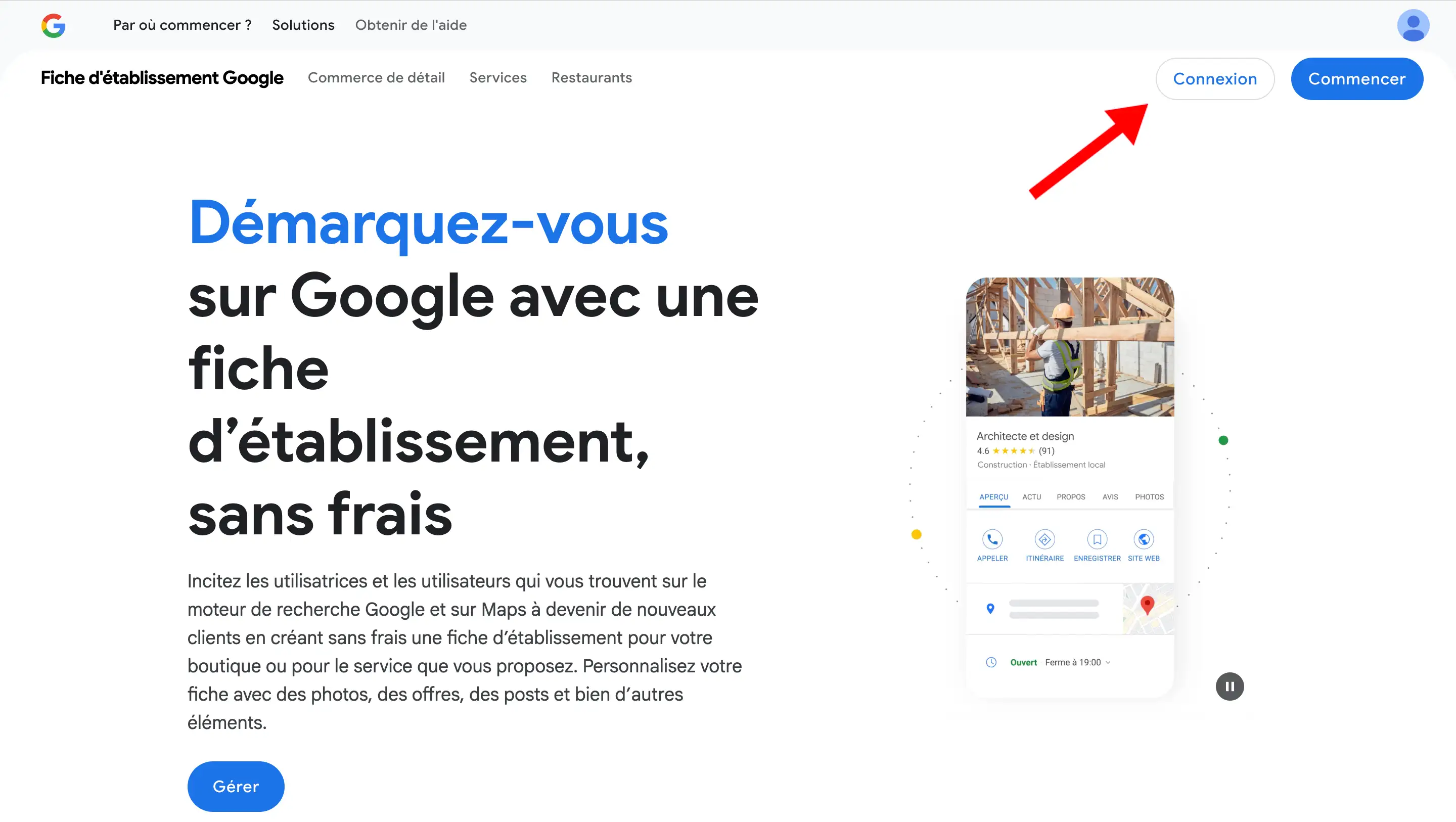
Once connected:
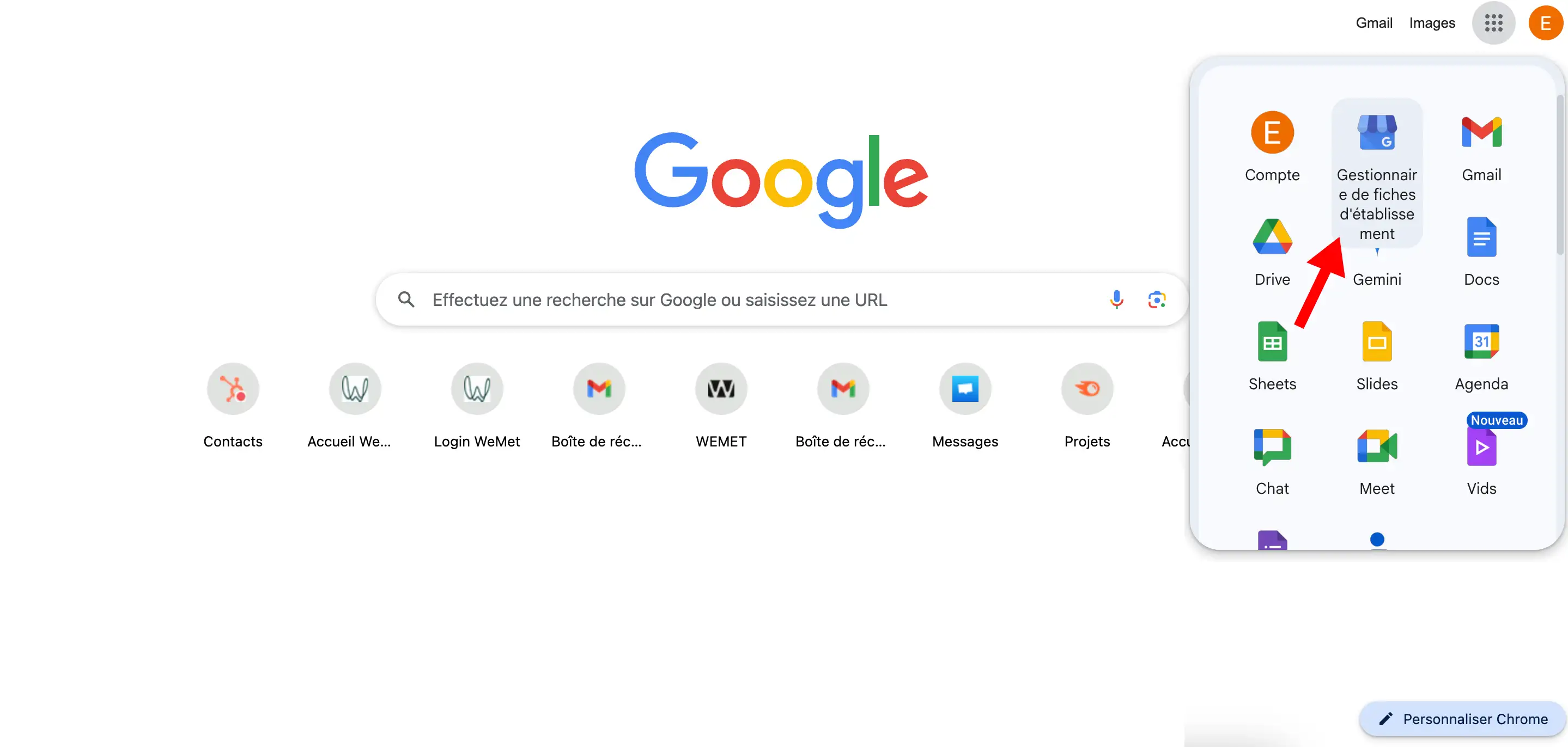


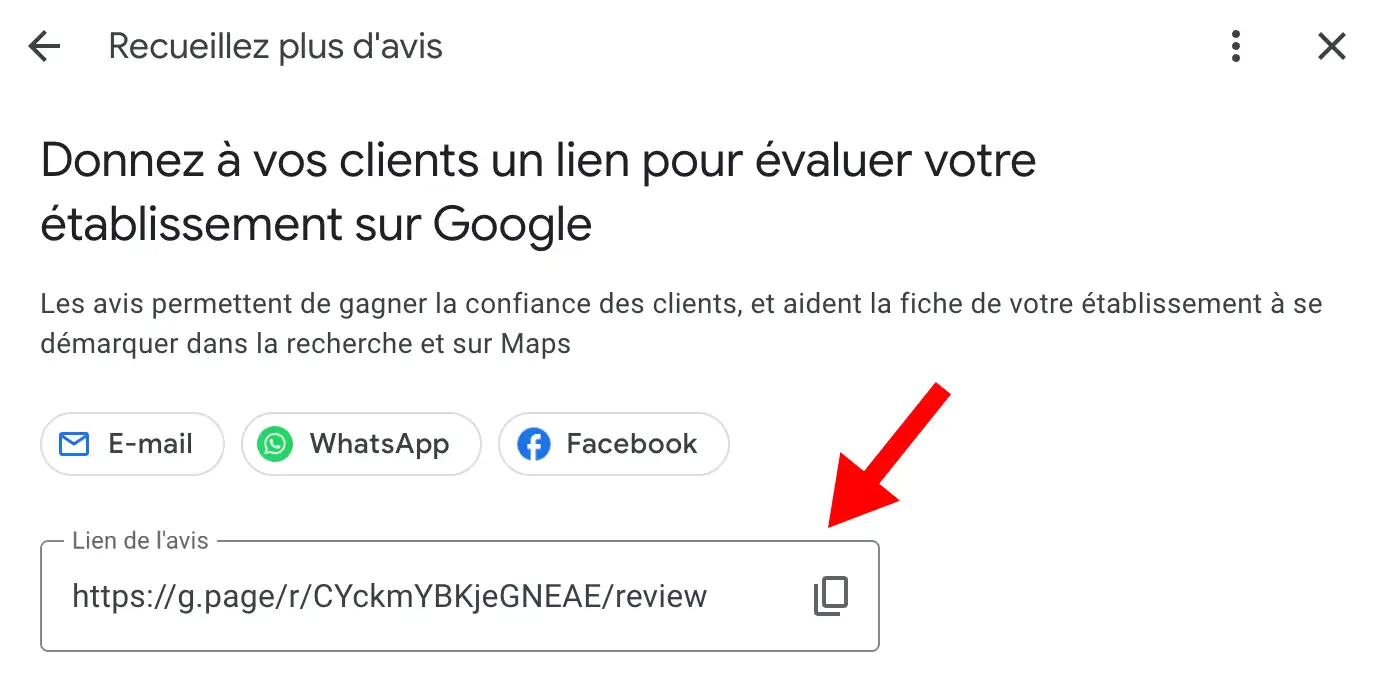
💡 This link will allow your customers to leave a review quickly, without having to search for your business.
Here are a few practical ways you can use your link to your Google reviews, including with a NFC plate :
Hello [First name],
Thank you for your trust.
Your feedback is valuable! You can leave a review here: [Google review link]
Thanks in advance for a few minutes of your time.
The link generated by Google can be quite long. To make it more practical and aesthetic, you can:
www.monsite.fr/avis).No, the link is automatically generated by Google, but you can personalize it by creating a QR Code or a shortcut.
Yes, each establishment has its own review link. You can create as many NFC plates Google review so many establishments.
Yes, your customers need to be logged into their Google account to post a review. This guarantees the authenticity of the reviews.
Check that your form is validated and active. If the link doesn't work, reconnect to your Google Business Profile to regenerate the link.
No, Google doesn't allow reviews to be deactivated. However, you can report an inappropriate review.
➡️ Use the Google review link to facilitate the collection of reviews and improve your e-reputation.
➡️ The NFC plates: Google review are a modern solution for collecting reviews easily.
➡️ Share your link intelligently to maximize the impact of customer reviews, especially via emails, websites or NFC plates.
Last updated: August 2025