Technology
À lire aussi

What are the functionalities of an NFC business card and how can they transform your professional exchanges?
.png)
Marketplace, Waalaxy integration, offline AI scanner, badge folders, multilingual app... WEMET is opening up to your ecosystem this month. Discover all the new features and our tips for getting the most out of them.
Our digital business cards work using NFC technology, which allows you to exchange your contact details in a simple gesture. However, we understand that some of your contacts may prefer to use a QR code to access your information. Here's how to scan your digital business card using a QR code on various Android devices:

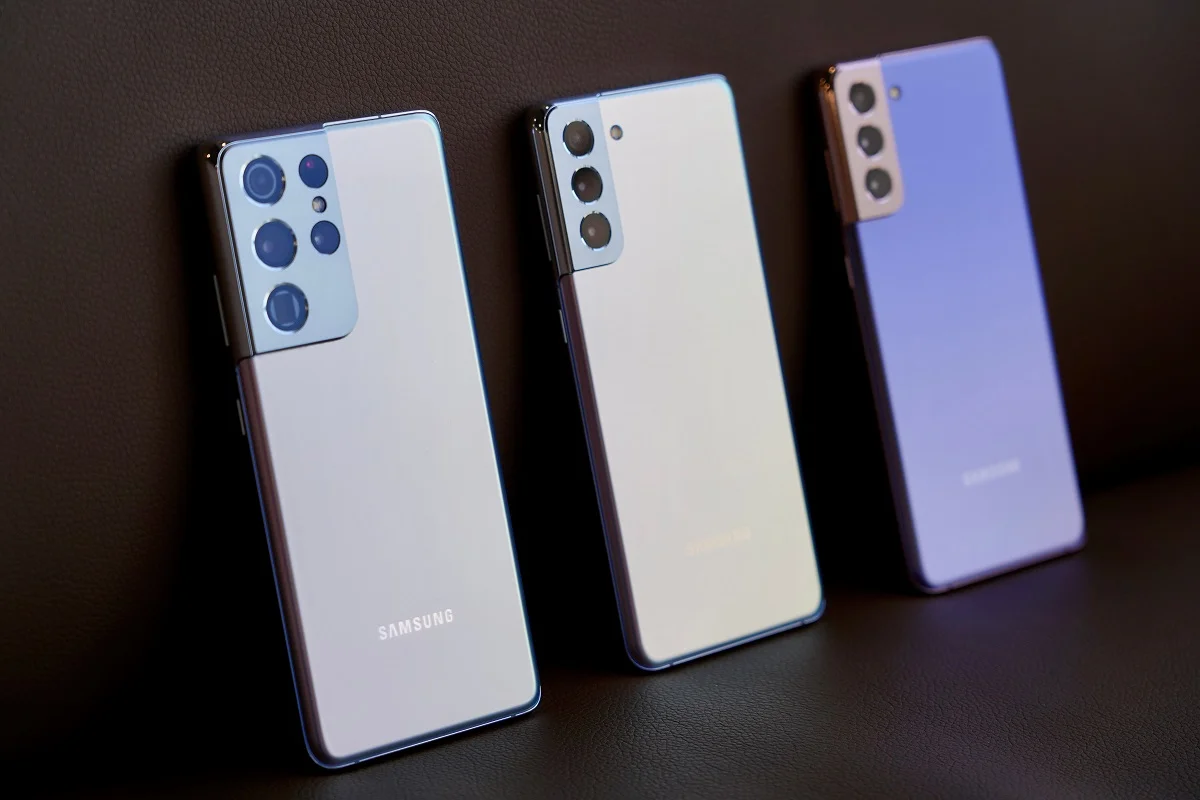
The QR code scanning feature via the Camera app is generally available on most Samsung phones, including the Galaxy S, Galaxy Note, and Galaxy A series. However, availability may vary depending on the specific model and the version of the operating system installed on the phone.
If you have a Samsung device that is not compatible with the camera scanning feature, download the Bixby Visionapp. It will allow you to read QR codes. When you open your camera, the Bixby feature appears directly to scan your QR code.
Compatibility : from Galaxy S8 and 8+ onwards
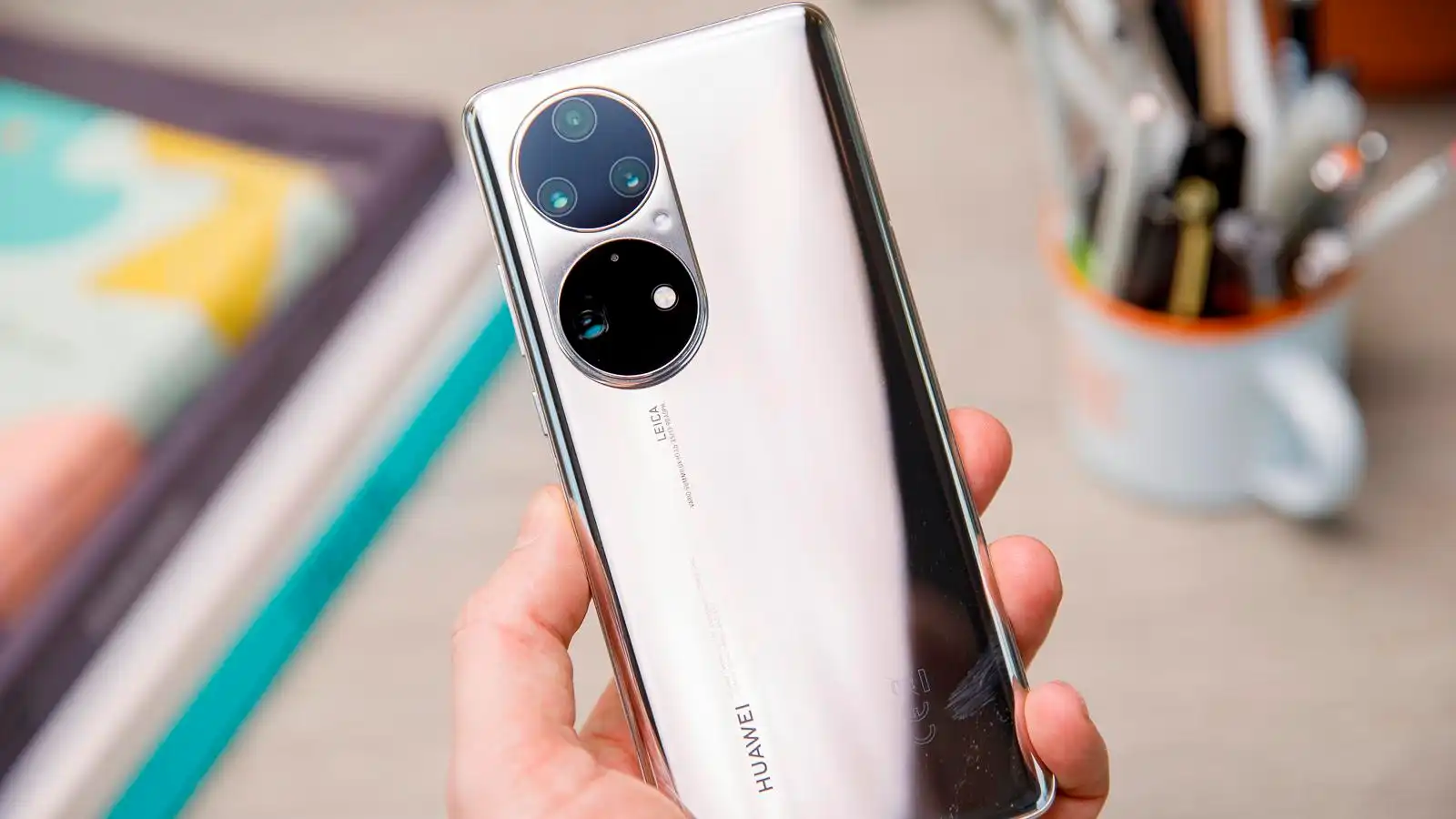
For Xiaomi:
For Huawei:
Compatibility: models from 2019 onwards

For Asus phones, simply open the “Camera” app and scan the QR code in question.
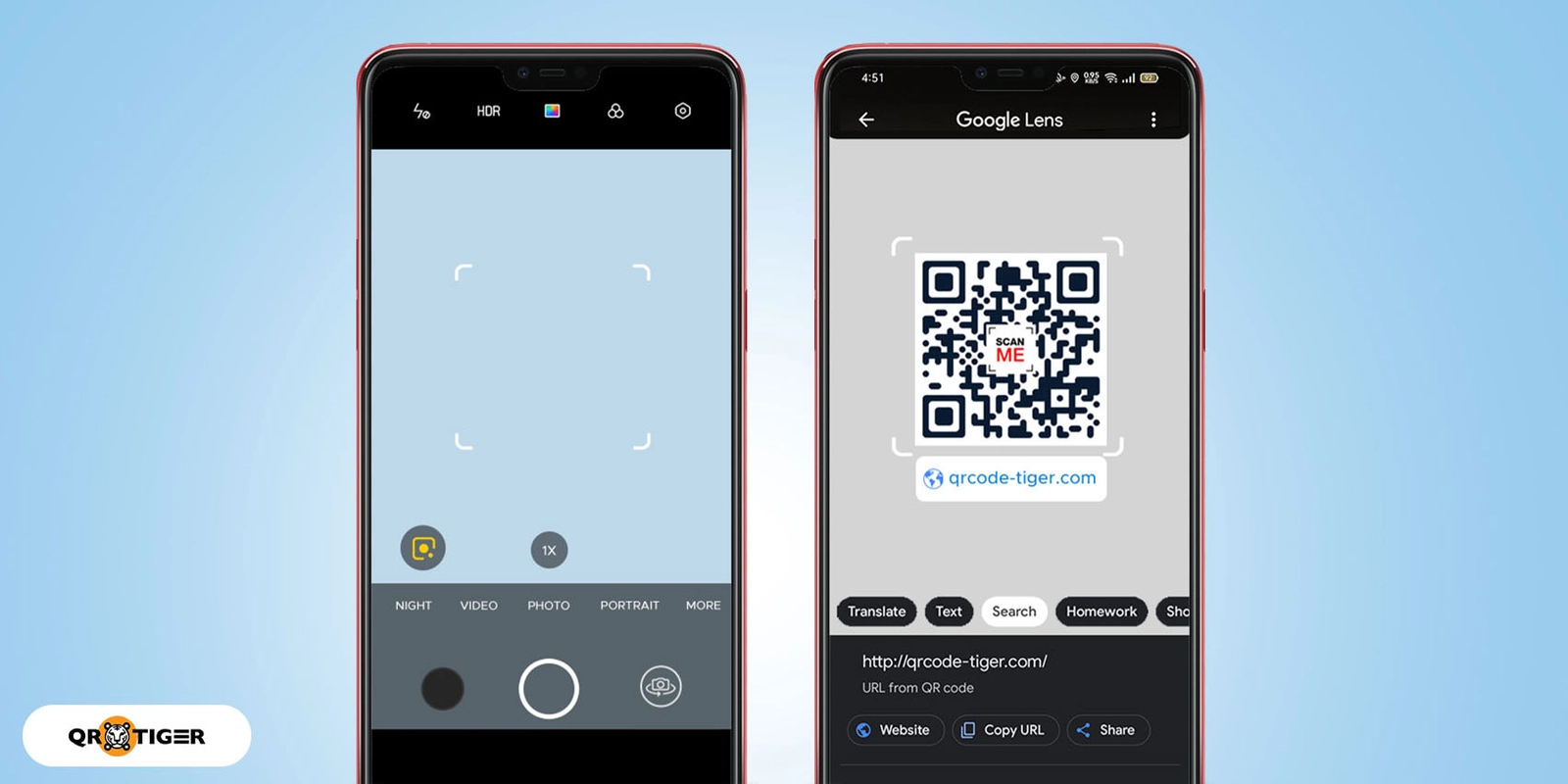
Most Oppo, Realme, LG, and OnePlus phones use Google Lens to scan QR codes. Google Lens is an app developed by Google that uses your phone's camera to detect and interpret information within images, including QR codes.
When you use the camera app on these phones and point it at a QR code, the app can automatically recognize the code and display information or actions related to its content. This might include opening a web link, displaying text, or providing additional details about what the QR code contains.
You can use Google Lens to scan a QR code by first opening the Google Lens app on your Android smartphone. Once the app is open, point your camera at the QR code you want to scan. Google Lens will automatically detect the code and display information or actions related to it. This could involve opening a link, showing text, or providing further details about the QR code's content.
There are various apps available for reading QR codes. The most reliable and highly rated ones on the market remain Google Lens, QR Code Reader , and QR & Barcode Scanner, all of which are available on Google Play.
Scanning a QR code isn't just for opening a website or paying for a coffee contactlessly. In professional networking, it has become a go-to method for capturing a contact in seconds, provided you have the right tool to not just "see" the information, but to turn it into an actionable contact.
Many of the people you meet still use paper business cards, sometimes with a printed QR code, sometimes without. With theWEMET app, you can scan any paper business card: automatic recognition extracts the name, company, job title, and contact details, with no manual entry required. The contact is added directly to your WEMET space, ready to be enriched or exported to your CRM.
At a trade show, every visitor or exhibitor badge usually contains a QR code that encodes contact information. Rather than taking a photo of the badge or scanning it with the organizer's generic app, the WEMET app allows you to centralize all these contacts captured at the show in the same place as your other leads, along with the context of the meeting, the date, and the associated event.
(To learn more about this topic: Scanning trade show badges: the complete guide to capturing your leads)
The LinkedIn QR code (available in the LinkedIn app under "My code") is generally used to connect directly on the social network. With the WEMET app, it also becomes a shortcut for capturing contacts: by scanning your contact's LinkedIn QR code, the app automatically retrieves their profile information (name, job title, company, photo) to create an actionable contact record directly, with no manual entry and no need to wait for them to accept your connection request.
In short: the QR code is a common language for all these situations, but the tool that reads it makes the difference between "I saw the info" and "I captured an actionable lead."
As technology evolves, QR codes, while practical, can seem a bit dated. Today, more and more professionals are adopting NFC (Near Field Communication) as a modern alternative for exchanging information quickly and contactlessly.
NFC offers a smooth and efficient user experience, especially when integrated into NFC-enabled smart business cards.
With NFC, you simply tap your business card against a compatible smartphone, and your contact details are instantly transferred. It is an eco-friendly, practical, and highly customizable solution that adapts to the needs of professionals who want to stay at the cutting edge of technology.